> For the complete documentation index, see [llms.txt](https://docs.protoboard.xyz/llms.txt). Markdown versions of documentation pages are available by appending `.md` to page URLs; this page is available as [Markdown](https://docs.protoboard.xyz/user-guide/bom-and-export.md).
# BOM + Export
Generate a bill of materials, manage supplier info and pricing, and export your board as CSV, PDF, or screenshot.
## Goal
Turn your validated board into procurement-ready outputs: a bill of materials with pricing, and export files you can hand off to purchasing or share with your team.
***
## Opening the BOM view
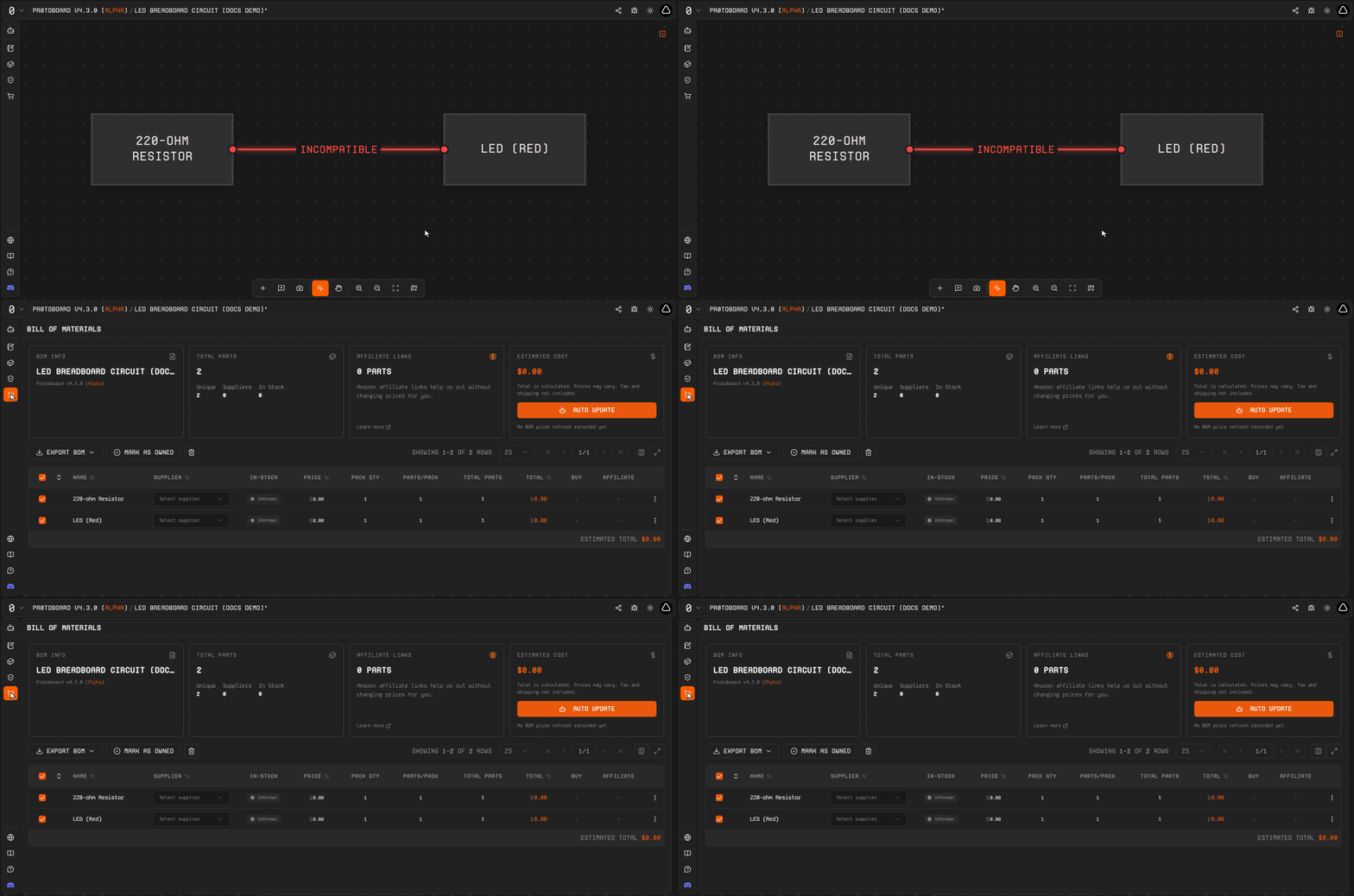
Show the Bill of Materials fullscreen view opening after a click on the activity-bar cart icon.
{% stepper %}
{% step %}
#### Click the BOM icon
Click the **cart icon** in the left sidebar to open the BOM view as a fullscreen panel.
{% endstep %}
{% step %}
#### Review your parts
The BOM displays a **grouped table** listing every part on your board with quantities, unit costs, and total costs. Parts are grouped logically so you can see the breakdown at a glance.
{% endstep %}
{% endstepper %}
***
## BOM features
{% columns %}
{% column %}
#### Pricing and suppliers
Each part can have one or more suppliers with the following details:
* **Vendor name**: who sells the part
* **Purchase URL**: direct link to the vendor listing
* **Vendor part number**: the vendor's own part identifier
* **Price**: unit cost
* **Pack quantity**: how many come in one package
* **Min order quantity**: smallest purchase quantity
* **Stock availability**: whether the part is in stock
You can select the **active supplier** for each part to control which pricing is used in calculations.
{% endcolumn %}
{% column %}
#### Cost calculations
Protoboard calculates costs at two levels:
* **Per-item cost**: unit cost multiplied by quantity, accounting for pack size (so you know how many packs to order)
* **Board-level total**: the sum of all part costs for the complete board
**BOM statistics** (hover over the BOM icon) give you a quick summary:
* Estimated total cost
* Total number of parts
* Number of unique parts
* Number of unique suppliers
{% endcolumn %}
{% endcolumns %}
***
## Working with the BOM table
{% tabs %}
{% tab title="Editing" %}
Cells in the BOM table are **editable**. Click any cell to update supplier information, pricing, or quantities directly in the table.
{% endtab %}
{% tab title="Sorting" %}
Click column headers to **sort** the table by name, quantity, cost, or any other column. This helps you quickly find the most expensive parts or the ones with the highest quantities.
{% endtab %}
{% tab title="Pagination" %}
For large boards with many parts, the BOM table is **paginated**. Use the navigation controls at the bottom to move between pages.
{% endtab %}
{% tab title="Refreshing" %}
Click **Refresh BOM** to update pricing and availability data. This pulls the latest information for all parts in your bill of materials.
{% endtab %}
{% endtabs %}
***
## Exporting
### BOM export
Export your bill of materials in two formats:
| Format | File name | Best for |
| ------- | ---------------------- | ------------------------------------------------------------- |
| **CSV** | `{board-name}-bom.csv` | Importing into spreadsheets, ERP systems, or purchasing tools |
| **PDF** | `{board-name}-bom.pdf` | Sharing with stakeholders, printing, or archiving |
{% hint style="info" %}
The exported file name is based on your board name. Give your board a clear name in the [Board Identity tab](/user-guide/planning.md) before exporting so the files are easy to identify.
{% endhint %}
### Screenshot export
Capture a visual snapshot of your board layout:
{% stepper %}
{% step %}
#### Open the screenshot tool
Go to **Project menu** and select **Screenshot**. A preview dialog appears.
{% endstep %}
{% step %}
#### Choose your options
* Toggle between **light** and **dark** theme for the screenshot
* Preview how the image will look
{% endstep %}
{% step %}
#### Save or copy
* **Copy to clipboard**: paste directly into documents, chat, or presentations
* **Download as PNG**: save as an image file to your computer
{% endstep %}
{% endstepper %}
***
## Common failures
The BOM total seems wrong
Check the **pack size** for each part. If a part comes in packs of 10 but you only need 3, Protoboard calculates the cost of one pack (since you cannot buy fewer). This is correct for procurement but may seem higher than expected if you are thinking in terms of per-unit cost.
A part shows no supplier or price
Not all parts in the library have pre-populated supplier data. Click into the part's row in the BOM table and add supplier information manually (vendor name, price, purchase URL).
My exported CSV is missing parts
Make sure all parts on your board are properly placed on the canvas. Parts that were deleted from the canvas but remain in the template list are not included in the BOM. Use **Refresh BOM** to ensure the table reflects the current board state.
***
## Related pages
* [Planning](/user-guide/planning.md): set your board name before exporting
* [Validation (DRC)](/user-guide/validation-drc.md): validate your board before generating procurement outputs
* [Sharing / Collaboration](/user-guide/sharing-and-collaboration.md): share your board or exports with your team
* [Projects](/user-guide/projects.md): save your board before exporting
---
# Agent Instructions
This documentation is published with GitBook. GitBook is the documentation platform designed so that both humans and AI agents can read, navigate, and reason over technical content effectively. Learn more at gitbook.com.
## Querying This Documentation
If you need additional information that is not directly available in this page, you can query the documentation dynamically by asking a question.
Perform an HTTP GET request on the current page URL with the `ask` query parameter, and the optional `goal` query parameter:
```
GET https://docs.protoboard.xyz/user-guide/bom-and-export.md?ask=&goal=
```
`ask` is the immediate question: it should be specific, self-contained, and written in natural language.
`goal` is optional and describes the broader end goal you are ultimately trying to accomplish on behalf of the user. GitBook uses it to tailor the answer towards what is most useful for that goal.
The response will contain a direct answer to the question and relevant excerpts and sources from the documentation.
Use this mechanism when the answer is not explicitly present in the current page, you need clarification or additional context, or you want to retrieve related documentation sections.