> For the complete documentation index, see [llms.txt](https://docs.protoboard.xyz/llms.txt). Markdown versions of documentation pages are available by appending `.md` to page URLs; this page is available as [Markdown](https://docs.protoboard.xyz/user-guide/canvas-basics.md).
# Canvas Basics
Navigate the canvas, place parts, create connections, and use annotations to build your board layout.
## Goal
Master the Protoboard canvas so you can place parts, draw connections, annotate your design, and navigate large boards with confidence.
***
## The workspace
The canvas is an **infinite 2D workspace** with a dot grid background. You can pan and zoom freely to work at any scale. Parts snap to the grid automatically, keeping your layout tidy.
{% columns %}
{% column %}
#### Navigation controls
* **Pan**: Hold the middle mouse button and drag, or switch to Hand mode
* **Zoom in/out**: Scroll wheel, or use the zoom controls in the toolbar
* **Zoom to fit**: Click the **Fit** button to see your entire board at once
* **MiniMap**: A small overview of your board appears in the corner for quick orientation on large designs
{% endcolumn %}
{% column %}
#### Canvas modes
| Mode | Behavior | Activate |
| ---------------- | ----------------------------------------- | --------------------------------- |
| **Pointer** | Select and move parts | Default mode |
| **Hand** | Pan the canvas without selecting anything | Click the Hand tool or hold Space |
| {% endcolumn %} | | |
| {% endcolumns %} | | |
***
## Placing parts
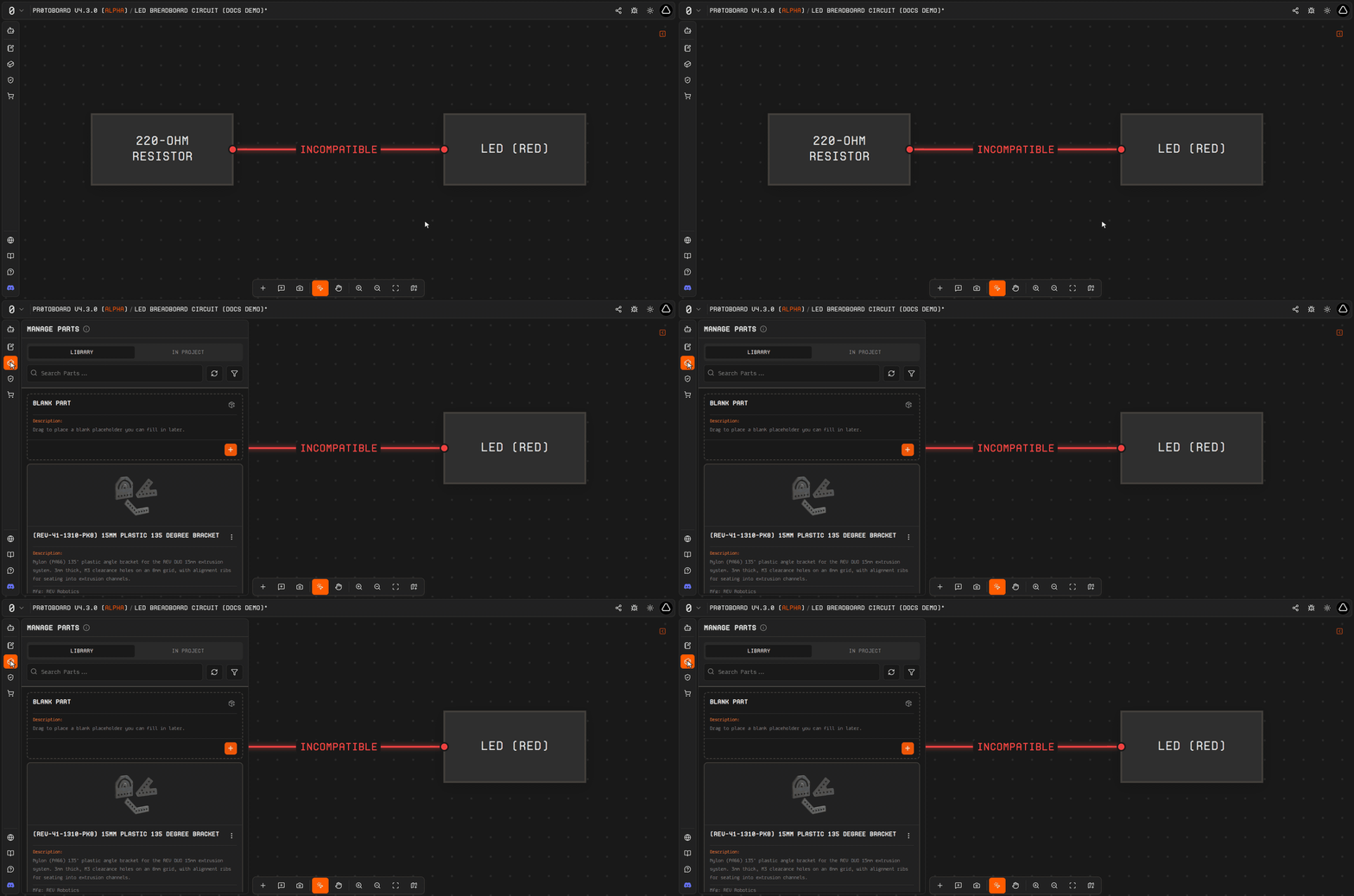
Show the Parts Bin panel sliding open after a click on the activity-bar cuboid icon.
{% stepper %}
{% step %}
#### Open the Parts Bin
Click the **cuboid icon** in the left sidebar to open the Parts Bin.
{% endstep %}
{% step %}
#### Find your part
Search for a part by name or keyword. Protoboard uses AI-powered semantic search, so describing what you need (e.g., "temperature sensor" or "brushless motor driver") works well.
{% endstep %}
{% step %}
#### Drag onto the canvas
Click and drag a part card from the Parts Bin onto the canvas. An **orange preview node** follows your cursor. Release the mouse button to place the part at that location.
{% endstep %}
{% endstepper %}
{% hint style="info" %}
Parts snap to the grid when placed. You can reposition them at any time by clicking and dragging.
{% endhint %}
***
## Creating connections (harnesses)
Connections between parts are called **harnesses**. Each harness represents the logical link between two parts and can contain multiple interface links and wire-level function links.
{% stepper %}
{% step %}
#### Hover near a part edge
Move your cursor near the edge of a placed part. A **dynamic handle** appears, indicating a connection point.
{% endstep %}
{% step %}
#### Drag to another part
Click the handle and drag a line to another part on the canvas. When you release over a valid target, a **harness** is created between the two parts.
{% endstep %}
{% step %}
#### Configure the harness
Select the harness to open the **Inspector** panel, where you can set up interface links, function links, and resource allocation. See [Connections & Compatibility](/user-guide/connections-and-compatibility.md) for details.
{% endstep %}
{% endstepper %}
{% hint style="success" %}
After a connection is made, **static handles** persist on the connected parts so you can easily see and manage your harnesses.
{% endhint %}
***
## Context menu actions
Right-click anywhere on the canvas to access context-sensitive actions:
{% tabs %}
{% tab title="Parts selected" %}
* **Copy**: copy the selected parts to clipboard
* **Duplicate**: create an offset copy immediately
* **Auto-route harnesses**: let Protoboard clean up connection paths
* **Tidy handles**: reorganize connection handles for a cleaner look
* **Arrange selected**: auto-layout selected parts
{% endtab %}
{% tab title="Harness selected" %}
* **Auto-route**: optimize the harness path
* **Move source/target handle**: reposition handles to Top, Right, Bottom, or Left
{% endtab %}
{% tab title="No selection (empty canvas)" %}
* **Paste**: paste previously copied parts from clipboard
{% endtab %}
{% endtabs %}
***
## Annotations
Add **text comment boxes** to your canvas to document decisions, flag issues, or leave notes for collaborators.
Each annotation supports:
* **Title** and **body** text
* Optional **node reference** to link the comment to a specific part
* **Adjustable width** to fit your content
***
## Undo, redo, copy, and paste
Protoboard supports full undo/redo for all operations:
| Action | Windows / Linux | macOS |
| ------ | ------------------ | ------------------ |
| Undo | Ctrl+Z | Cmd+Z |
| Redo | Ctrl+Shift+Z | Cmd+Shift+Z |
| Copy | Ctrl+C | Cmd+C |
| Paste | Ctrl+V | Cmd+V |
| Delete | Delete / Backspace | Delete / Backspace |
{% hint style="info" %}
Duplicated and pasted parts are placed with a slight offset so they do not stack directly on top of the originals.
{% endhint %}
***
## Themes
Toggle between **light mode** and **dark mode** using the theme switch in the top bar. Your preference is remembered across sessions.
***
## Common failures
I cannot connect two parts; no handle appears
Make sure you are in **Pointer** mode (not Hand mode). Hover slowly near the edge of the part node. The dynamic handle only appears when your cursor is close to the node boundary.
My board is too zoomed in and I cannot find my parts
Click the **Fit** button in the zoom controls to zoom out and center on all placed parts. You can also use the **MiniMap** to navigate to a specific area.
Parts are not aligning neatly
Parts snap to the grid by default. If things look messy, select the parts you want to organize, right-click, and choose **Arrange selected** to auto-layout them.
***
## Related pages
* [Parts: Add / Edit / Custom](/user-guide/parts-add-edit-custom.md): find and configure parts for your board
* [Connections & Compatibility](/user-guide/connections-and-compatibility.md): configure harnesses after connecting parts
* [Keyboard Shortcuts](/user-guide/keyboard-shortcuts.md): speed up canvas work with shortcuts
* [Projects](/user-guide/projects.md): create and save boards
---
# Agent Instructions
This documentation is published with GitBook. GitBook is the documentation platform designed so that both humans and AI agents can read, navigate, and reason over technical content effectively. Learn more at gitbook.com.
## Querying This Documentation
If you need additional information that is not directly available in this page, you can query the documentation dynamically by asking a question.
Perform an HTTP GET request on the current page URL with the `ask` query parameter, and the optional `goal` query parameter:
```
GET https://docs.protoboard.xyz/user-guide/canvas-basics.md?ask=&goal=
```
`ask` is the immediate question: it should be specific, self-contained, and written in natural language.
`goal` is optional and describes the broader end goal you are ultimately trying to accomplish on behalf of the user. GitBook uses it to tailor the answer towards what is most useful for that goal.
The response will contain a direct answer to the question and relevant excerpts and sources from the documentation.
Use this mechanism when the answer is not explicitly present in the current page, you need clarification or additional context, or you want to retrieve related documentation sections.