> For the complete documentation index, see [llms.txt](https://docs.protoboard.xyz/llms.txt). Markdown versions of documentation pages are available by appending `.md` to page URLs; this page is available as [Markdown](https://docs.protoboard.xyz/editor/board-identity.md).
# Board Identity, requirements and kits
Record a board's description, tags, requirements, notes and tasks, attach concept images and restrict the board to a parts kit
## Goal
Write down what the board is for and what it must do, so you, your team and ProtoBot work toward the same target.
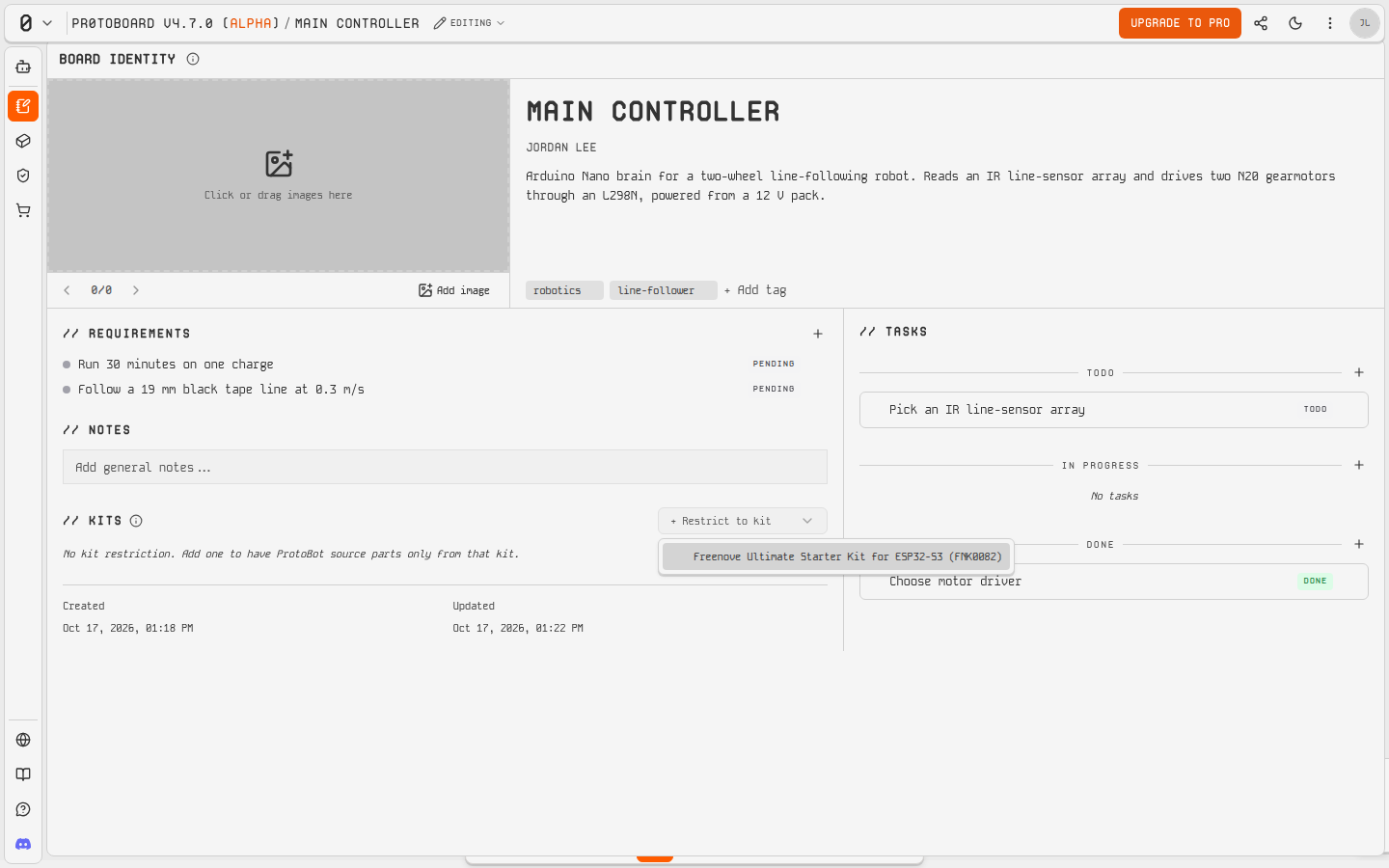
Open **Board Identity** (the notebook icon) in the left rail. It holds everything about the board that isn't on the canvas.
Board Identity.
## Name, description and tags
* **Board name**: shown in the header, on cards and in exported file names.
* **Description**: what the board does.
* **Tags**: click **+ Add tag**, for example `robotics` or `line-follower`.
## Requirements
Under **// Requirements**, click **Add requirement** and write one testable statement, for example `Runs 30 minutes on one charge`. Each requirement has a status: **pending**, **validated**, **partial** or **failed**. Update it as the design progresses. ProtoBot reads requirements and can update their status.
## Notes
**// Notes** is free text for design decisions and constraints.
## Tasks
**// Tasks** has three columns: **TODO**, **IN PROGRESS** and **DONE**. Type in "New task..." to add one, click its status to move it along, and drag to reorder.
## Concept images
Drop sketches, photos or reference images on "Click or drag images here". Open an image to view it full size, **Download** it or **Delete** it. Fill in **Description**: it's used as the image's alt text for screen reader users and tells ProtoBot what the image shows.
## Kits
Restrict a board to a purchasable parts kit, for example for a class that hands out the same kit to everyone.
1. Open **+ Restrict to kit** and choose a kit (for example the Freenove FNK0082 kit).
2. The kit row shows how many kit parts are placed and how many the kit has, with a link to the **Kit documentation**.
3. If you place more of a part than the kit contains, the row shows how many parts are over.
With a kit restriction, ProtoBot sources parts only from that kit. Kits also appear as a category in the [Parts Bin](/editor/parts-bin.md).
Restrict a board to a kit.
## Common failures
My edits don't stick
The board is in **Viewing** mode, which is read only. Click the status pill and choose **Start editing**.
I can't upload concept images
Uploading needs an account. Sign in, and save a draft board to the cloud first.
## Related pages
* [Build a line-following robot](/tutorials/line-following-robot.md)
* [What ProtoBot can change](/protobot/what-protobot-can-change.md)
* [Parts Bin](/editor/parts-bin.md)