> For the complete documentation index, see [llms.txt](https://docs.protoboard.xyz/llms.txt). Markdown versions of documentation pages are available by appending `.md` to page URLs; this page is available as [Markdown](https://docs.protoboard.xyz/user-guide/validation-drc.md).
# Validation (DRC)
Run design rule checks (DRC) to validate your board, interpret results, and use the Board Review panel.
## Goal
Learn how to run validation checks on your board, read the results, and use the Board Review panel to identify and navigate to issues.
***
## What DRC checks
The **Design Rule Check (DRC)** engine evaluates every harness on your board and reports on connection health. It checks for:
* **Resource allocation**: are internal resources properly assigned to interface functions?
* **Group constraints**: are limits like GPIO current budgets respected?
* **Interface constraints**: are bus sizes, voltage levels, and other parameters compatible?
* **Connection directionality**: are roles complementary (e.g., output to input)?
* **Capacity limits**: are parts within their maximum connection counts?
***
## DRC statuses
Every harness on your board receives one of four statuses:
{% tabs %}
{% tab title="CONFIGURED (Green)" %}
All connections are properly set up. Interface links, function links, and resource allocations are complete and valid.
**No action needed.** This harness is ready.
{% endtab %}
{% tab title="PARTIALLY CONFIGURED (Amber)" %}
Some connections exist but the setup is incomplete. For example, interface links may exist but function links or resource allocations are missing.
**Action needed.** Open the harness in the Inspector and complete the remaining configuration.
{% endtab %}
{% tab title="NOT CONFIGURED (Red)" %}
No connections have been established within this harness. The harness exists (you drew it on the canvas) but no interface links have been created.
**Action needed.** Select the harness and add interface links in the Inspector.
{% endtab %}
{% tab title="INCOMPATIBLE (Red)" %}
A fundamental incompatibility was detected. The connected interfaces cannot work together due to protocol mismatch, role conflicts, or other hard constraints.
**Action needed.** Review the parts involved. You may need to change an interface role, swap a part, or add an adapter (like a level shifter or protocol converter).
{% endtab %}
{% endtabs %}
***
## The Board Review panel
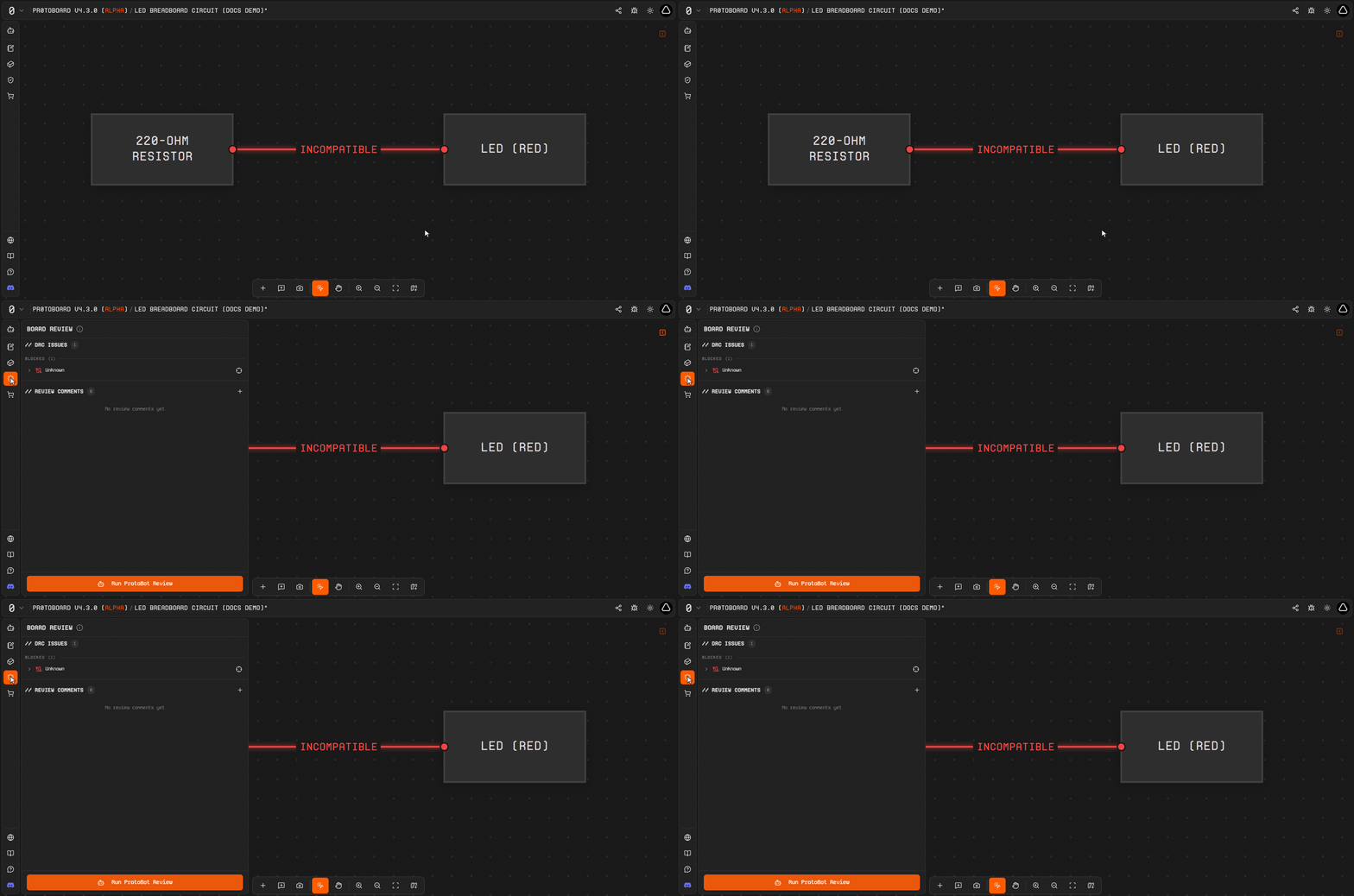
Show the Board Review panel opening with a BLOCKED DRC issue after a click on the activity-bar shield icon.
The **Board Review** panel is your central hub for finding and fixing issues across your entire board.
{% stepper %}
{% step %}
#### Open Board Review
Click the **shield icon** in the left sidebar to open the Board Review panel.
{% endstep %}
{% step %}
#### Review DRC issues
Issues are grouped by severity:
* **BLOCKED**: critical problems that must be resolved
* **PARTIAL**: incomplete configurations that need attention
Each issue card shows:
* The **harness name**
* The **affected parts**
* The **reasons** for the issue
{% endstep %}
{% step %}
#### Locate on board
Click the **"Locate on board"** button (crosshair icon) on any issue card. The canvas automatically pans and zooms to highlight the affected harness or part.
{% endstep %}
{% step %}
#### Fix and re-validate
Make your changes in the Inspector, then return to Board Review to confirm the issue is resolved. See [Fixing Errors](/user-guide/fixing-errors.md) for common fix patterns.
{% endstep %}
{% endstepper %}
***
## ProtoBot Review
{% hint style="info" %}
Click the **"Run ProtoBot Review"** button in the Board Review panel to get an AI-powered analysis of your board. ProtoBot examines your design holistically and provides actionable suggestions in the Review Comments section.
{% endhint %}
The **Review Comments** section in Board Review acts as a collaborative thread. Both you and ProtoBot can post comments, making it easy to discuss design decisions and track review feedback.
***
## Visual feedback on the canvas
You do not need to open Board Review to see your validation status. The canvas provides real-time visual feedback:
| Visual cue | What it means |
| ---------------------------------- | ------------------------------------- |
| **Green** harness line and handles | Fully configured and valid |
| **Amber** harness line and handles | Partially configured; needs more work |
| **Red** harness line and handles | Not configured or incompatible |
This color coding updates automatically as you make changes, so you always know the current state of every connection.
***
## Common failures
All my harnesses are red even though I connected parts
Drawing a harness on the canvas only creates the top-level connection. You still need to add **interface links** and **function links** inside each harness, then **allocate resources**. Select a harness and use the Inspector to complete the setup.
Board Review shows no issues but my harness is still amber
Amber means partially configured. The Board Review panel groups issues by severity; some partial configurations may appear under the **PARTIAL** group. Expand all groups to see every issue. Complete the missing function links or resource allocations to turn the harness green.
"Locate on board" does not seem to navigate anywhere
The affected element may already be in view. Try zooming out first, then clicking the locate button again. The canvas will center on the affected part or harness.
***
## Related pages
* [Fixing Errors](/user-guide/fixing-errors.md): step-by-step patterns for resolving DRC issues
* [Connections & Compatibility](/user-guide/connections-and-compatibility.md): understand what makes connections valid
* [Canvas Basics](/user-guide/canvas-basics.md): visual feedback and canvas navigation
* [Parts: Add / Edit / Custom](/user-guide/parts-add-edit-custom.md): edit part interfaces to resolve incompatibilities
---
# Agent Instructions
This documentation is published with GitBook. GitBook is the documentation platform designed so that both humans and AI agents can read, navigate, and reason over technical content effectively. Learn more at gitbook.com.
## Querying This Documentation
If you need additional information that is not directly available in this page, you can query the documentation dynamically by asking a question.
Perform an HTTP GET request on the current page URL with the `ask` query parameter, and the optional `goal` query parameter:
```
GET https://docs.protoboard.xyz/user-guide/validation-drc.md?ask=&goal=
```
`ask` is the immediate question: it should be specific, self-contained, and written in natural language.
`goal` is optional and describes the broader end goal you are ultimately trying to accomplish on behalf of the user. GitBook uses it to tailor the answer towards what is most useful for that goal.
The response will contain a direct answer to the question and relevant excerpts and sources from the documentation.
Use this mechanism when the answer is not explicitly present in the current page, you need clarification or additional context, or you want to retrieve related documentation sections.